
So Ubuntu 26.04 LTS is finally here. Resolute Raccoon dropped on April 23, 2026, and honestly, this one is worth getting excited about — GNOME 50, Linux kernel 7.0, a Rust-powered sudo replacement, and native NVIDIA CUDA in the official repos. If you have been sitting on Ubuntu 24.04 and wondering whether now is a good time to upgrade, the short answer is: yes, go for it.
I have put together this guide to walk you through the whole process from start to finish. We’ll cover what’s actually new (so you know what you’re getting into), a pre-upgrade checklist to avoid common headaches, the upgrade itself using both the graphical tool and the terminal, and what to check once you reboot. There’s also a troubleshooting section at the end for the stuff that can go wrong.
Let’s get into it.
What’s Actually New in Ubuntu 26.04
Before you upgrade, it’s worth knowing what you’re walking into. This isn’t a minor point release — Ubuntu 26.04 brings some real changes that will affect your daily workflow, especially if you rely on NVIDIA hardware, X11 apps, or older PPAs.
| What Changed | The Details |
| GNOME 50 | The default desktop. Wayland is now mandatory — the GNOME X11 session is gone. Fractional scaling and VRR are much improved. XWayland still handles legacy X11 apps transparently. |
| Linux Kernel 7.0 | Better hardware support across the board. Improved memory management, and Rust is now a fully supported kernel language (no longer marked experimental). |
| sudo-rs | The classic C sudo has been replaced by a memory-safe Rust rewrite called sudo-rs. Day-to-day usage is identical — you won’t notice the difference. |
| APT 3.2 | The package manager gets useful new tricks: apt history-list and apt history-rollback let you undo package changes. Plus a new dependency solver and OpenSSL-backed TLS. |
| NVIDIA CUDA in official repos | First Ubuntu release to include NVIDIA CUDA in the main repository. No more third-party PPAs just to get CUDA working. |
| VA-API hardware video | AMD and Intel users get hardware video acceleration enabled by default. Great for media playback and encoding. |
| New Resources app | The old System Monitor and Power Statistics apps are replaced by a single, cleaner Resources app. |
| Developer toolchain bump | GCC 15.2, Python 3.14, Rust 1.93, Golang 1.26, OpenJDK 25, .NET 10, LLVM 21 — all in the repos out of the box. |
| TPM-backed full-disk encryption | If you set up FDE during a fresh install, it can now be backed by TPM hardware for better security. |
| Minimum RAM is now 6 GB | GNOME 50 + Wayland is heavier than before. Ubuntu raised the minimum RAM requirement from 4 GB to 6 GB. |
⚠️ One thing that will catch people off guard: Google Drive integration has been removed from the Files app (Nautilus). The library it depended on went unmaintained and was dropped. If you use Google Drive through Files, sort out an alternative before you upgrade — a browser tab or rclone are your best options.
System Requirements
Make sure your machine is actually ready for 26.04 before you kick off the upgrade:
| Component | Minimum |
| Processor | 64-bit, 2 GHz dual-core |
| RAM | 6 GB (up from 4 GB in 24.04) |
| Free disk space | 25 GB on the root partition |
| Internet connection | Stable broadband — the upgrade downloads over 1 GB |
| Current OS | Ubuntu 24.04 LTS, fully updated |
⚠️ If you are on Ubuntu 22.04 or an interim release like 25.04, you cannot jump straight to 26.04. You need to be on 24.04 LTS first.
Pre-Upgrade Checklist — Don’t Skip This
I know it’s tempting to just run the command and let it rip. Please don’t. Going through these six steps takes maybe 15 minutes and can save you from a broken system that takes hours to fix.
1. Back up your data
This is non-negotiable. The upgrade replaces thousands of packages and config files. Things can go wrong — a power cut at the wrong moment, a package conflict, a driver issue — and when they do, you need a way back.
Timeshift is the easiest option for a full system snapshot. For your home directory, rsync works great:
rsync -avz --progress /home/your-username/ /media/external-drive/backup/
💡 If you have a spare drive or a second partition, doing a full disk image with Clonezilla or dd gives you the ultimate safety net. Overkill for most, but worth it if you’re running anything mission-critical.
2. Fully update your 24.04 system first
The upgrade tool checks that your system is fully current before it proceeds. Save yourself the back-and-forth and just do it now:
sudo apt update && sudo apt upgrade -y

sudo apt dist-upgrade -y

sudo apt autoremove -yReboot after this if any kernel or system updates were applied.
3. Write down your third-party PPAs
The upgrade process disables all your third-party PPAs automatically. They don’t get re-enabled afterwards — that’s on you. Jot them down now so you can sort them out after the upgrade:
cat /etc/apt/sources.list.d/*.list | grep -v '^#'
4. Check your NVIDIA drivers
If you’re on NVIDIA proprietary drivers, make sure you’re on the latest version before upgrading. Go to Software & Updates > Additional Drivers and apply any pending driver updates. GNOME 50 has improved NVIDIA suspend/wake support, but starting the upgrade on an outdated driver can cause problems.
5. Check you have enough free disk space
The upgrade needs room to download packages and stage the installation. 10–15 GB free on your root partition is the safe zone. Check it:
df -h /
If you’re tight on space, run apt autoremove and clean the package cache first:
sudo apt autoremove -y && sudo apt clean
6. Disable non-essential startup applications
VPN clients, custom daemons, and some startup scripts can interfere with the upgrade mid-process. Temporarily disable anything that isn’t standard via Settings > Startup Applications. You can re-enable them after the reboot.
The Upgrade — Two Ways to Do It
You can upgrade through the graphical Software Updater or from the terminal. Both methods get you to the same place. Pick whichever you’re more comfortable with.
Method 1: Software Updater (the easy way)
This is the way most desktop users will go, and it’s the most straightforward.
- Open Software Updater from the Applications menu (or search for it in Activities).
- Click Check for Updates. It will first install any remaining 24.04 updates.
- Once that’s done, you’ll get a pop-up: ‘Ubuntu 26.04 LTS is now available.’ Click Upgrade.
- The upgrade wizard launches. Read through the release notes if you like, then click Start Upgrade.
- It will download the required packages — this can take a while depending on your connection. Go make a coffee.
- When it asks about restarting services automatically, say Yes. Otherwise the upgrade will pause and wait for you to confirm each service restart manually, which is painful.
- Near the end, it’ll ask whether to remove obsolete packages. Click Remove — these are leftover packages from 24.04 that aren’t needed anymore.
- Finally, click Restart Now to reboot into Ubuntu 26.04.
💡 If Software Updater doesn’t offer the 26.04 upgrade, don’t panic. Canonical usually only enables the LTS-to-LTS upgrade prompt after the first point release (26.04.1, expected August 2026). Until then, use Method 2 below to trigger it manually.
Method 2: Terminal with do-release-upgrade
Terminal method is great if you prefer to see exactly what’s happening, or if you’re doing this over SSH on a remote machine.
⚠️ Important: Run the upgrade from a TTY, not a GNOME terminal
During the upgrade, GNOME and its terminal emulator (gnome-terminal, Tilix, etc.) get their packages replaced mid-process. When that happens, your terminal window will simply close — and if the upgrade process was tied to it, it dies too. The cleanest way to avoid this is to run the upgrade from a virtual console (TTY) outside of the graphical session entirely.
Switch to TTY3 with:
Ctrl + Alt + F3
Log in with your username and password, then run the upgrade from there. The TTY session is completely independent of the graphical environment — even if GNOME crashes or restarts during the upgrade, your terminal stays alive. When the upgrade finishes, switch back to your desktop with Ctrl + Alt + F2 (or F1), then reboot.
First, make sure update-manager-core is installed:
sudo apt install update-manager-core -y
Then kick off the upgrade:
sudo do-release-upgrade
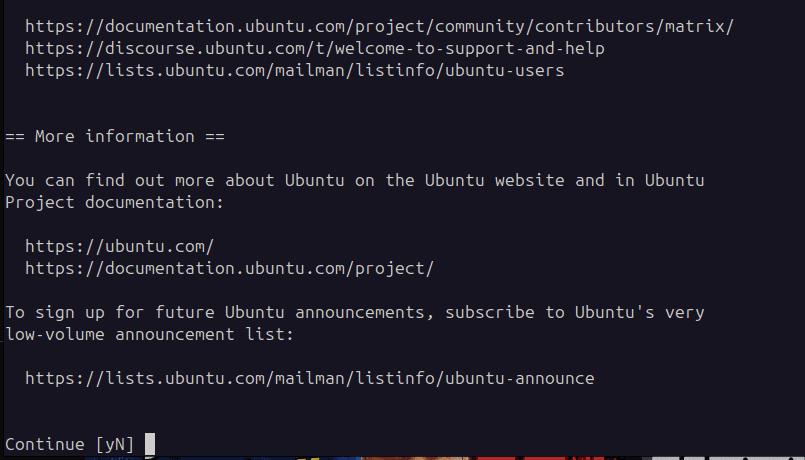
The tool will walk you through everything in sequence — checking for the release, downloading packages, confirming the changes, and cleaning up. Here’s what it asks and what to do:
| Prompt | What to Do |
| ‘Do you want to start the upgrade?’ — shows packages to remove, install, and upgrade | Review the numbers look reasonable (expect ~1,300 upgrades, ~150 new packages, ~11 removals). Press Enter to start. |
| ‘Restart services during package upgrades without asking?’ | Tab to Yes and press Enter. Trust me — this saves a lot of waiting. |
| A service like CUPS shows it couldn’t be restarted | Don’t worry about it. Press Enter to continue. It restarts cleanly after the system reboot. |
| Snap apps being switched to their 26.04 channels | Nothing to do here — it’s automatic. Just watch it go. |
| ‘Remove obsolete packages?’ — usually 130+ packages | Type Y. These are old 24.04 packages that are no longer needed. |
| ‘System upgrade is complete. Restart required.’ | Press Enter to reboot into Ubuntu 26.04. |
⚠️ If sudo do-release-upgrade comes back with ‘No new release found’, it just means the upgrade hasn’t been officially opened up yet for your channel. Force it with the -d flag: sudo do-release-upgrade -d
After the Reboot — Things to Check
You’re in Ubuntu 26.04 now. Before you get back to your normal workflow, run through these quick checks.
Confirm the OS version
lsb_release -a
You should see: Description: Ubuntu 26.04 LTS
Check the kernel version
uname -r
You should be on kernel 7.0.x.
Re-enable your PPAs
Remember those PPAs you noted earlier? Time to go through them. Open Software & Updates > Other Software, re-enable the ones that matter to you, then run an update:
sudo apt update && sudo apt upgrade -y
If a PPA doesn’t have a 26.04 build yet, disable it for now and check back in a few weeks. Trying to force it will cause package errors.
Sort out your NVIDIA setup
Go to Software & Updates > Additional Drivers and confirm your driver is active and loaded correctly. Good news: CUDA is now in the official Ubuntu repos, so if you were using a third-party CUDA PPA, you can likely drop it and just do:
sudo apt install nvidia-cuda-toolkit
Verify your Wayland session
GNOME 50 is Wayland-only. If something feels off with a particular app, check that you’re actually on Wayland:
echo $XDG_SESSION_TYPE
Troubleshooting
Upgrades don’t always go perfectly. Here are the most common issues and how to sort them out.
‘No new release found’
This just means the official upgrade path for your channel hasn’t opened yet. Use the -d flag to force it:
sudo do-release-upgrade -d
Upgrade hangs and stops responding
Sometimes a configuration dialog gets buried under terminal output and the upgrade looks frozen. Open a second terminal and check what’s waiting:
ps aux | grep apt
If you see a debconf process sitting idle, switch back to the first terminal and press Tab or Enter to interact with the hidden dialog.
Black screen or login loop after reboot
This usually points to a display manager or GPU driver conflict, most commonly on NVIDIA systems. At the GRUB menu, choose Advanced options > recovery mode, then Resume to get a minimal session. From there, reinstall the driver:
sudo ubuntu-drivers autoinstall

sudo rebootThat fixes it in most cases. If not, try purging and reinstalling the specific driver version:
sudo apt purge nvidia-* && sudo ubuntu-drivers autoinstall
Apps broken or crashing — Wayland issues
Since GNOME 50 dropped X11, some apps that haven’t been updated for Wayland can behave oddly — screen sharing not working, window positioning issues, crashes on launch. The quick fix is running the app via XWayland:
GDK_BACKEND=x11 app-name
For Electron-based apps (VS Code, Slack, Discord), add –no-sandbox or –ozone-platform=x11 as a launch flag. Check the app’s release notes too — many have released Wayland-native versions recently.
Font or display looks wrong / fractional scaling issues
GNOME 50 improved fractional scaling but you may need to re-set it after the upgrade. Go to Settings > Displays, and set your preferred scale. If things still look off, try toggling the setting off and back on — sometimes it just needs a nudge.
FAQ
No. Ubuntu’s upgrade path only supports moving one LTS at a time. You need to go 22.04 → 24.04 first, then 24.04 → 26.04. There’s no shortcut here.
The 26.04.0 release that dropped on April 23 is stable and ready for daily use. That said, if you’re on a machine where stability is critical — a work laptop, a production workstation — waiting for 26.04.1 (expected August 2026) is a reasonable call. That point release will have the first wave of post-launch bug fixes baked in, and it’s also when Canonical officially opens up the automated upgrade prompt for 24.04 users.
Yes, the in-place upgrade doesn’t touch your /home directory or personal files. Your documents, downloads, configs — they all stay put. That said, back up anyway. Not because the upgrade will delete them, but because something unexpected could go wrong at the hardware level during a process this long. Better safe than sorry.
Generally yes, and it’s actually better than before in some ways. GNOME 50 has specific fixes for NVIDIA suspend and wake issues that have plagued previous releases. CUDA is now in the official repos. The main thing to watch out for is making sure your driver is up to date before you start the upgrade. If you hit issues after upgrading, sudo ubuntu-drivers autoinstall usually sorts it out.
GNOME 50 dropped the GNOME-on-X11 session entirely. The only GNOME session is now Wayland. XWayland is still included and handles legacy X11 apps transparently in the background, so for most everyday use you won’t notice a difference. The only cases where you might notice are apps that depend on X11-specific features like certain screen recorders, remote desktop tools, or older games.
Not through a built-in tool, no. Ubuntu doesn’t have a native rollback mechanism for major upgrades. If you took a Timeshift snapshot or a disk image before upgrading, you can restore from that. This is exactly why the backup step at the beginning isn’t optional — if things go sideways, that snapshot is your only clean way back.
Expect anywhere from 30 minutes to over an hour depending on your internet speed and hardware. The bulk of the time is downloading and installing packages. On a decent broadband connection (50 Mbps+), most people are done within 45–60 minutes.
Final Thoughts
Honestly, Ubuntu 26.04 feels like one of the more satisfying LTS upgrades in a while. The move to GNOME 50 with proper Wayland-only sessions cleans up a lot of the fractional scaling and display weirdness that plagued earlier releases. The Rust-based core utilities and the new sudo-rs are quiet improvements that you won’t notice day-to-day but matter for long-term security. And having CUDA in the official repos is a genuine quality-of-life win for anyone doing any kind of AI or GPU work.
The upgrade process itself is pretty smooth — as long as you go in prepared. Do the backup, update your current system first, note your PPAs, and you’ll be fine. If something does go wrong, the troubleshooting section above covers the most common scenarios.
If this guide helped you out, drop a comment below — and if you hit an issue that isn’t covered here, let me know and I’ll add it to the troubleshooting section.

I’m a software engineer with roots in embedded systems and a growing focus on DevOps and self-hosted infrastructure. CKA certified, CCNA background, and a homelab that never sleeps — running Proxmox, Kubernetes, Docker, Coolify, and more. On techlino.net I share practical guides on Linux, virtualization, and infrastructure built from real experience.