
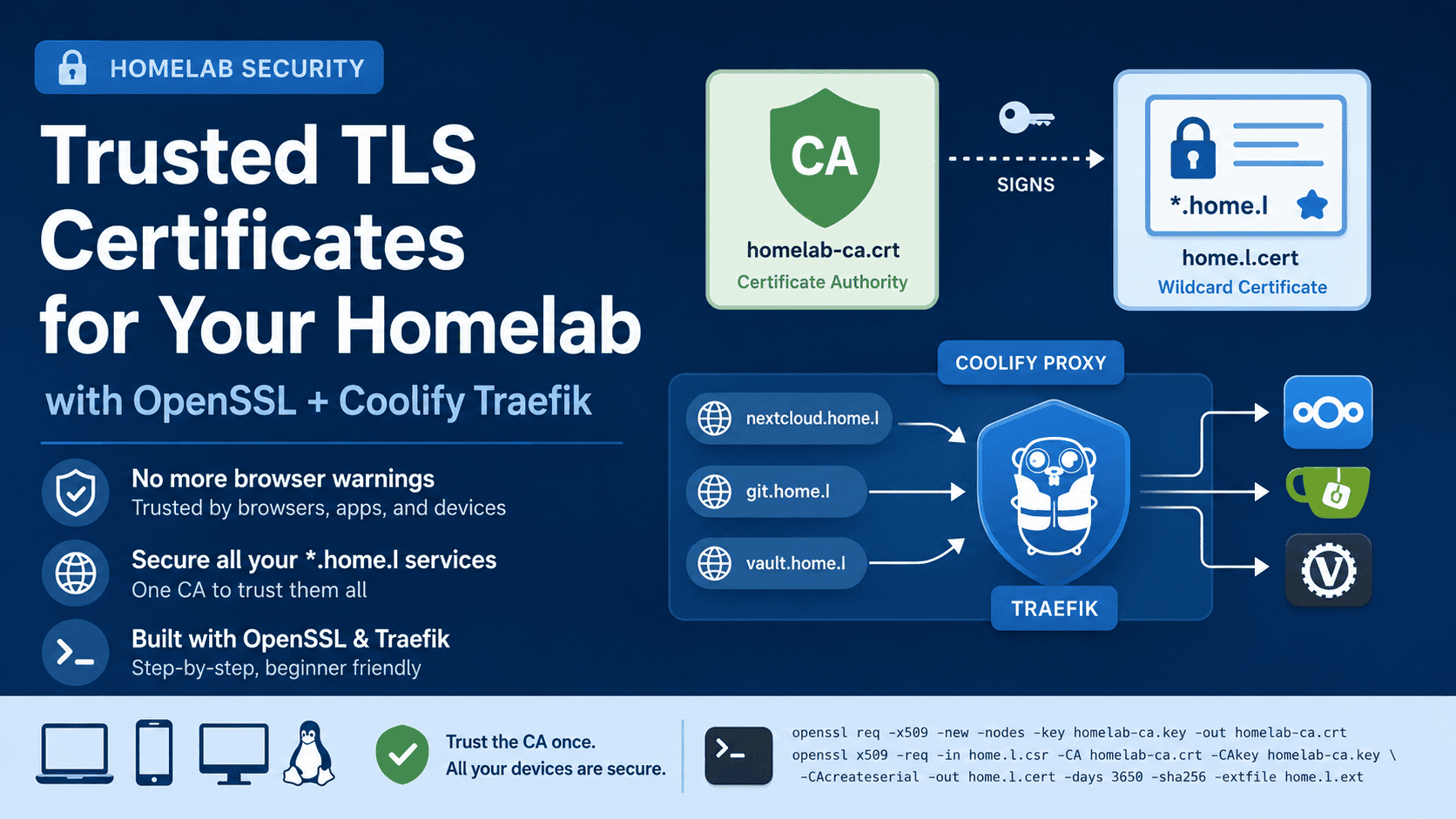
If you’re running self-hosted services in your homelab — Nextcloud, Gitea, Vaultwarden, or anything else — you’ve probably run into the dreaded “Your connection is not private” warning, or worse, apps that flat-out refuse to connect over HTTPS.
In this guide I’ll show you exactly how to set up a proper trusted TLS certificate for your local domains (like *.home.l) using OpenSSL, and configure it to work with Coolify’s Traefik proxy — so browsers, the Nextcloud desktop client, and mobile apps all trust it without warnings.
Why Your Existing Self-Signed Cert Probably Doesn’t Work
Most people generate a quick self-signed cert like this:
openssl req -x509 -newkey rsa:2048 -keyout key.pem -out cert.pem -days 365 -nodesThis creates a cert where the Issuer = Subject (self-signed), and only sets a CN (Common Name) field. The problem? Modern browsers and apps have required Subject Alternative Names (SAN) since 2017. A CN-only cert will be rejected by:
- Chrome / Chromium
- Firefox (in strict mode)
- Nextcloud desktop client
- Android apps
You’ll get errors like NET::ERR_CERT_AUTHORITY_INVALID Or the Nextcloud client will show “Failed to connect to the secure server address.”
You can verify if your cert has SAN with:
openssl x509 -in your.cert -text -noout | grep -A5 "Subject Alternative"If you see nothing — that’s your problem.
The Right Approach: A Two-Layer Setup
The correct solution is a two-layer PKI:
homelab-ca.crt   ← Your local Certificate Authority (import this into browsers/OS)
     └── signs
         home.l.cert  ← Wildcard cert used by Traefik (has proper SAN)
You import the CA once into each device/browser, and it automatically trusts every cert signed by it — including all your *.home.l subdomains.
Prerequisites
- A Linux server (Proxmox, Ubuntu, Debian — anything with OpenSSL)
- Coolify installed with Traefik as the proxy
- Your local domain resolving via DNS (Pi-hole, dnsmasq,
/etc/hosts, or a router)
Step 1 — Generate the Certificate Authority (CA)
SSH into your server and navigate to Coolify’s cert directory:
cd /data/coolify/proxy/certsGenerate the CA private key and self-signed CA certificate:
openssl genrsa -out homelab-ca.key 4096
openssl req -x509 -new -nodes -key homelab-ca.key -sha256 -days 3650 \
 -out homelab-ca.crt \
-subj "/CN=Homelab CA"This creates a CA valid for 10 years. Keep homelab-ca.key safe — anyone with this file can sign certificates trusted by your devices.
Step 2 — Generate the Wildcard Certificate with SAN
Generate the server private key and a Certificate Signing Request (CSR):
openssl genrsa -out home.l.key 2048
openssl req -new -key home.l.key \
  -out home.l.csr \
-subj "/CN=*.home.l"Create a SAN extension file:
cat > home.l.ext << EOF
authorityKeyIdentifier=keyid,issuer
basicConstraints=CA:FALSE
keyUsage=digitalSignature, keyEncipherment
extendedKeyUsage=serverAuth
subjectAltName=@alt_names
[alt_names]
DNS.1=*.home.l
DNS.2=home.l
EOFSign the cert with your CA:
openssl x509 -req -in home.l.csr -CA homelab-ca.crt -CAkey homelab-ca.key \
-CAcreateserial -out home.l.cert -days 3650 -sha256 -extfile home.l.extVerify the SAN is present:
openssl x509 -in home.l.cert -text -noout | grep -A3 "Subject Alternative"
You should see:
X509v3 Subject Alternative Name:
DNS:*.home.l, DNS:home.lStep 3 — Restart Traefik
Coolify uses a Docker container called coolify-proxy for Traefik. Restart it to pick up the new cert:
docker restart coolify-proxy # it maybe with different name, use `docker ps` to verify
Verify it’s serving the new cert:
openssl s_client -connect nextcloud.home.l:443 -servername nextcloud.home.l 2>/dev/null \
| openssl x509 -noout -subject -issuerYou should now see the issuer as CN=Homelab CA instead of CN=*.home.l.
Step 4 — Import the CA into Your Devices
This is the key step. You only need to do this once per device/browser.
Firefox
- Go to Settings → Privacy & Security → View Certificates → Authorities
- Click Import and select
homelab-ca.crt - Check “Trust this CA to identify websites”
- Click OK
Chrome / Chromium
- Go to Settings → Privacy & Security → Security → Manage certificates
- Go to the Authorities tab
- Click Import, select
homelab-ca.crt - Check “Trust this certificate for identifying websites”
Linux System (for desktop apps like Nextcloud client)
sudo cp homelab-ca.crt /usr/local/share/ca-certificates/homelab-ca.crt
sudo update-ca-certificatesThen restart the Nextcloud desktop client.
Windows
Double-click homelab-ca.crt → Install Certificate → Local Machine → Place in “Trusted Root Certification Authorities”
Troubleshooting
Make sure you imported homelab-ca.crt (the CA), not home.l.cert (the server cert). They are different files.
Run sudo update-ca-certificates and restart the app. Some apps need a full logout/login or system reboot to pick up new system CAs.
The app likely uses its own cert store. Check the app’s settings for a “Trust certificate” or “Import CA” option.
Check Coolify’s proxy configuration in the UI to confirm it points to /data/coolify/proxy/certs/home.l.cert and home.l.key.
Summary
| File | Purpose |
|---|---|
homelab-ca.key | CA private key — keep safe, never share |
homelab-ca.crt | CA certificate — import into browsers/OS |
home.l.key | Server private key — used by Traefik |
home.l.cert | Server certificate — used by Traefik |
With this setup, any subdomain of home.l (like nextcloud.home.l, git.home.l, vault.home.l) will be trusted automatically across all your devices once you’ve imported the CA — no more browser warnings, and desktop/mobile apps will connect cleanly over HTTPS.
Running a homelab with Proxmox and Coolify? I write about self-hosting, Linux, and DevOps at techlino.net.

I’m a software engineer with roots in embedded systems and a growing focus on DevOps and self-hosted infrastructure. CKA certified, CCNA background, and a homelab that never sleeps — running Proxmox, Kubernetes, Docker, Coolify, and more. On techlino.net I share practical guides on Linux, virtualization, and infrastructure built from real experience.