
- Part 1: Architecture & Strategy
- Part 2: Installing Proxmox VE on ZFS Properly
- Part 3: Running PBS in a VM on Your Main PC
- Part 4: Automated ZFS Snapshots with Sanoid
- Part 5: ZFS Replication Using Syncoid
- Part 6: Backing Up VMs to Proxmox Backup Server
- Part 7: Telegram Notifications for PVE & PBS
- Part 8: Full Backup Automation Scripts
- Part 9: Disaster Recovery Simulation
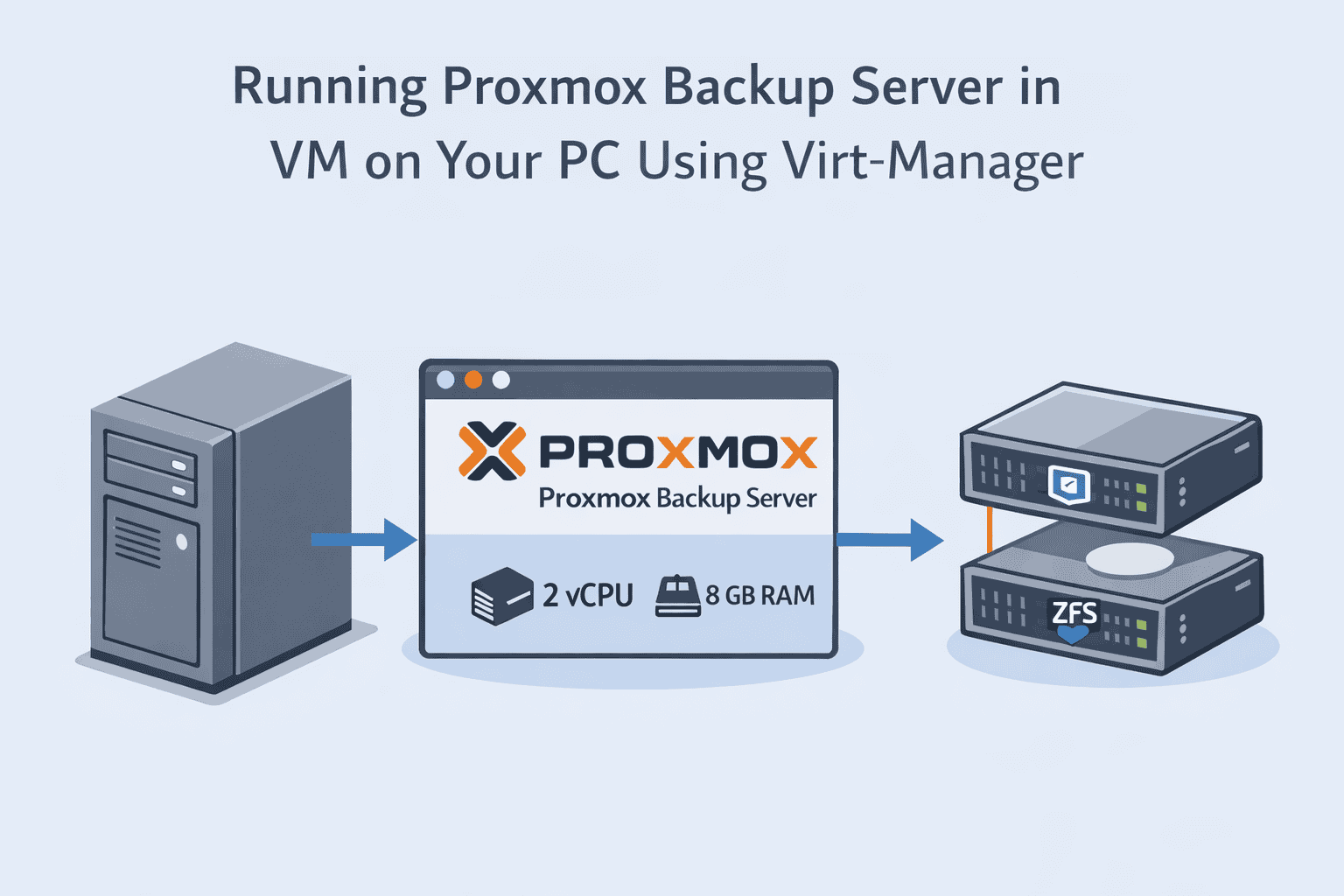
Running PBS on the same server as your production VMs is risky. If the host fails, your backups fail too. But you don’t need to buy dedicated hardware — running PBS in a VM on your main PC is safe, flexible, and efficient.
In this guide, we’ll show you how to run Proxmox Backup Server in Virt-Manager, plan your storage, configure networking, and set up off-host backups — with copy-paste commands and real-world homelab tips.
Why Off-Host PBS Matters
Backing up VMs to the same storage they run on is a recipe for disaster. If your host suffers a disk failure, hardware fault, or accidental misconfiguration, both your VMs and backups are at risk.
Off-host PBS solves this:
- Isolation: Your backup server is separate from production.
- Snapshots & Replication: Easily take snapshots and replicate ZFS datasets.
- Flexible Storage: You can assign a dedicated disk, SSD, or ZFS dataset for PBS.
Pro Tip: Even if you have a small homelab, a single off-host PBS VM is worth the effort for disaster protection.
Hardware & Storage Planning
Before creating your VM, plan resources wisely:
CPU & RAM Recommendations:
| PBS VM Size | CPU Cores | RAM |
|---|---|---|
| Small (1–5 VMs) | 2 | 4–8 GB |
| Medium (5–20 VMs) | 4 | 8–16 GB |
| Large (20+ VMs) | 6+ | 16+ GB |
Storage Recommendations:
- SSD: Best for frequent incremental backups.
- HDD: Good for large-capacity retention.
- Separate physical disk is ideal to protect from host disk failure.
Example Layout:
Host PC:
  /dev/sda →Your Main OS (Ubuntu e.g)
  /dev/sdb → PBS VM storage
Virt-Manager Setup
Install Virt-Manager on your main PC:
sudo apt update
sudo apt install virt-manager qemu-kvm libvirt-daemon-system libvirt-clients bridge-utils -y
Create the PBS VM:
- Open Virt-Manager → New VM.
- Select Local ISO → Debian 12 ISO (recommended for PBS stability).
- Assign:
- CPU: 2–4 cores
- RAM: 4–16 GB
- Disk: 100–500 GB (depending on backup size)
- Storage type: RAW (faster) or QCOW2 (flexible snapshots).
- Networking:
- Bridge: Makes PBS reachable from your LAN.
- NAT: Isolated, less configuration needed.
- Enable host resource limits if you want to prevent PBS from consuming all CPU during backups.
Installing Proxmox Backup Server
- Download the latest PBS ISO from the Proxmox website.
- Attach ISO in Virt-Manager → Boot the VM.
- Installation steps:
- Partition: Automatic or guided (root on SSD recommended)
- Network: Set static IP for LAN access
- Admin user: Create password and note it
- After installation, access the web UI:
https://<PBS_VM_IP>:8007
Storage Configuration in PBS
Add backup storage to PBS:
- Either direct disk (/dev/sdb) or mounted ZFS datasets from host.
- Run
lsblkso you can see which disk to attach. - Deduplication is enabled by default; ensure enough RAM for large datasets.
Tip: Keep the backup storage separate from the host’s main pool to avoid accidental data loss.
Networking & Access
- SSH access: Required for
syncoidor ZFS replication. - Static IP: Prevents PBS IP from changing, essential for cron jobs and automated replication.
- Firewall: Allow ports:
- 22 (SSH)
- 8007 (PBS Web UI)
- HTTPS/TLS: Ensure web access is secure.
Performance & Best Practices
- Use VirtIO drivers for disk and network for best performance.
- CPU pinning for large homelabs can reduce backup jitter:
virsh vcpupin <VM_NAME> 0 0
virsh vcpupin <VM_NAME> 1 1
- Schedule backups to avoid peak host usage.
- Monitor disk I/O — slow storage is the biggest bottleneck.
Pitfalls & Lessons Learned
Common mistakes homelabbers make:
- Running PBS on the same ZFS pool as production — defeats off-host purpose.
- Ignoring network bandwidth limits — large VM backups can saturate LAN.
Lessons Learned: Always allocate separate storage, schedule backups during off-peak hours, and monitor PBS VM health.
Next Steps
- Part 4 will cover automating ZFS snapshots with Sanoid and replicating datasets to PBS.
- Once your PBS VM is ready, integrate it into your full off-host backup workflow for a robust homelab.
- Part 1: Architecture & Strategy
- Part 2: Installing Proxmox VE on ZFS Properly
- Part 3: Running PBS in a VM on Your Main PC
- Part 4: Automated ZFS Snapshots with Sanoid
- Part 5: ZFS Replication Using Syncoid
- Part 6: Backing Up VMs to Proxmox Backup Server
- Part 7: Telegram Notifications for PVE & PBS
- Part 8: Full Backup Automation Scripts
- Part 9: Disaster Recovery Simulation

Mohammad Dahamshi is a skilled Embedded Software Engineer and web developer. With experience in C/C++, Linux, WordPress, and DevOps tools, he helps businesses solve technical challenges and build reliable digital solutions. Fluent in Arabic, Hebrew, and English, he also runs Saratec, offering web design and digital marketing services.
[…] Part 3, we will […]
[…] Part 2, we built a professional homelab storage […]